This page explains the "Playback Reservation" feature, which automatically plays scenarios at set times or regular intervals.
Overview
With playback reservations, scenarios can be played automatically under specified conditions, even when you are not actively using the app.
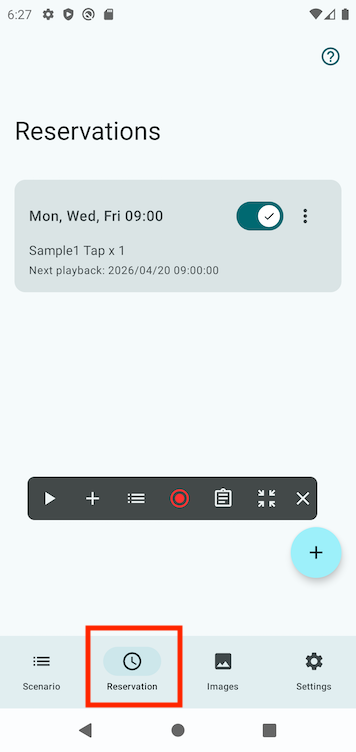
Playback reservations can be managed from the "Playback Reservation" tab in the navigation bar at the bottom of the app.
Creating a Playback Reservation
Tap the + button at the bottom right of the playback reservation list screen to open the screen for creating a new reservation.
Playback Condition
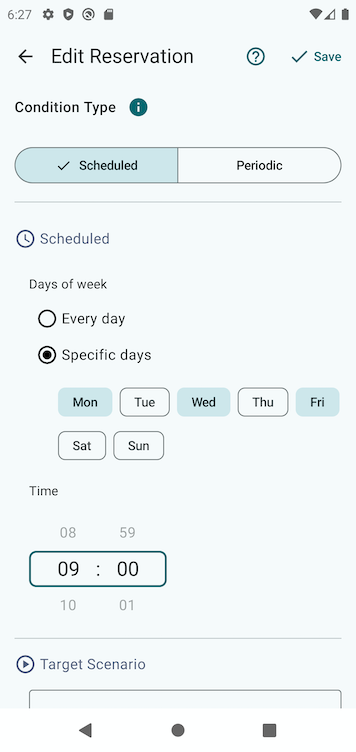
Set the condition that determines when playback occurs. You can choose from two types: "Scheduled" and "Periodic".
Scheduled
Plays the scenario at specified days and times.
You can select "Every day" or "Specific days". When "Specific days" is selected, choose the days you want playback to occur.
Set the time to start playback.
Periodic
Plays the scenario at regular time intervals.
Set the interval between scenario playbacks. You can specify in seconds, minutes, or hours.
When this option is ON, the interval to the next playback is measured from when the scenario finishes playing. When OFF, it is measured from when playback starts.
Set the waiting time from when the reservation is saved until the first playback occurs. Select "Same as playback interval" to wait the same amount of time as the playback interval before the first playback. Select "Specify initial delay" to set a custom time.
Target Scenario
Select the scenario to play.
Override Playback Count
Normally, the scenario’s repeat count uses the value specified in the scenario settings. When this option is ON, you can override the repeat count for reserved playback.
Since playback reservations repeat playback on a schedule, the default setting overrides the playback count to 1.
Options
Wake from Sleep
When this option is ON, the device screen will be turned on and the scenario will play even if the device is in sleep mode.
Sleep on Completion
When this option is ON, the screen will automatically lock (sleep) after the scenario finishes playing successfully. When used together with "Wake from Sleep", you can automate the entire flow: sleep → screen on → scenario playback → sleep.
Notify on Completion
When this option is ON, a notification will be displayed when scenario playback completes (whether successful or failed). Tapping the notification navigates to the playback reservation list screen.
Managing Playback Reservations
Enabling/Disabling
On the playback reservation list screen, you can toggle each reservation’s switch ON/OFF to enable or disable it. Disabled reservations will not execute. When re-enabled, the reservation restarts from the initial delay.
Editing and Deleting
Tap a reservation in the list, or select "Edit" from the three-dot menu on the right side of the reservation to open the edit screen.
To delete a reservation, select "Delete" from the three-dot menu. A confirmation dialog will be displayed.
Checking Execution Results
The playback reservation list screen shows the previous execution result for each reservation. If playback failed, tap the Info icon next to the error to see the cause and how to resolve it.
You can also tap the log icon to view the scenario execution log from the reserved playback.
About Playback Tickets
If you are not subscribed to the premium plan, playback tickets are required to execute playback reservations. Watch a reward ad from "Get Playback Ticket" at the top of the scenario list to earn tickets. If you don’t have enough tickets, the reserved playback will fail.
Limitations
- Scenarios that require screen capture cannot be used
Scenarios that include image detection or text detection do not work with playback reservations. Please use UI element detection instead.
- Does not work when the device is powered off
If the device is in sleep mode, you can use the "Wake from Sleep" option.
- Playback may not execute at the exact specified time
Due to Android’s battery optimization and Doze mode, there may be a delay of several minutes from the specified time. This can be improved by excluding TapEzy from battery optimization in the device settings.
- The app’s accessibility service must be enabled
If the service is disabled, the reservation will fail.